3# Mastering Command Line Basics: Navigating and Managing Files

My name is Hamza Rehman. I'm a passionate DevOps enthusiast. With a deep interest in open-source technologies and automation, I enjoys to share my knowledge and insights with the community.
In the world of DevOps, command-line proficiency is a fundamental skill. Whether you're managing servers, configuring applications, or troubleshooting issues, knowing how to navigate and manipulate files through the command line is essential. In this comprehensive guide, we'll explore the basic commands that empower you to efficiently navigate and manage files like a pro.
Getting Started with the Command Line:
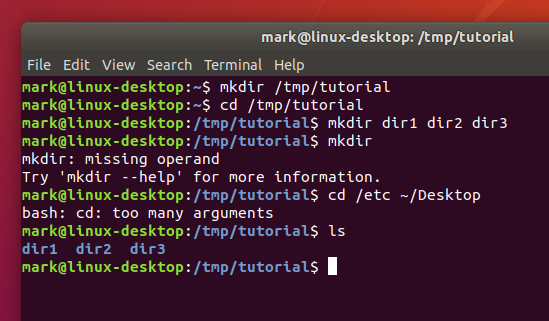
The command line interface (CLI) is a powerful tool that allows you to interact with your computer through text-based commands. Before diving into file management, let's cover some essential commands:
pwd- Print Working Directory: Use this command to display the current directory you're in. It's your starting point on the command line journey.ls- List Directory Contents: List the files and directories in your current location. The-lflag provides a detailed view.cd- Change Directory: Move between directories using thecdcommand followed by the directory's name.mkdir- Make Directory: Create a new directory with a specified name using this command.
touch - Create Empty Files: Use touch to create empty files. Simply type touch filename to create a new file.
Navigating Through Directories:
Navigating directories is the cornerstone of effective file management. Here's how to do it:

Relative Paths: Move between directories using relative paths. For example,
cd Documentswill take you into the "Documents" directory.Absolute Paths: Use absolute paths to navigate from the root directory. For instance,
cd /home/user/Documentstakes you directly to the "Documents" directory.Parent and Current Directory: Use
..to refer to the parent directory and.to refer to the current directory.
File Management Essentials:
Efficiently managing files is crucial. Here's how:
.png)
Copying Files: Use the
cpcommand to duplicate files. For example,cp file.txt backup/creates a copy of "file.txt" in the "backup" directory.Moving and Renaming: The
mvcommand moves files or directories. To rename a file, usemv oldname.txt newname.txt.Deleting Files: The
rmcommand deletes files. Use with caution!rm -rf directorydeletes a directory and its contents.
Conclusion:
Mastering command line basics for file navigation and management opens a world of possibilities for DevOps professionals. These foundational skills empower you to work seamlessly in various environments, from local machines to remote servers. As you practice and become more comfortable, you'll find the command line to be an indispensable tool in your DevOps toolkit.
