Getting Started with the AWS CLI
My name is Hamza Rehman. I'm a passionate DevOps enthusiast. With a deep interest in open-source technologies and automation, I enjoys to share my knowledge and insights with the community.
The AWS Command Line Interface (CLI) is a powerful tool that allows you to interact with AWS services using commands in your command-line shell. With the AWS CLI, you can manage your AWS services and automate tasks through scripts, making it an essential tool for any AWS user.
What is the AWS CLI?
The AWS CLI is an open-source tool that enables you to interact with AWS services using command-line commands. It provides a unified interface to manage AWS resources, making it easier to perform tasks like provisioning resources, configuring services, and automating workflows.
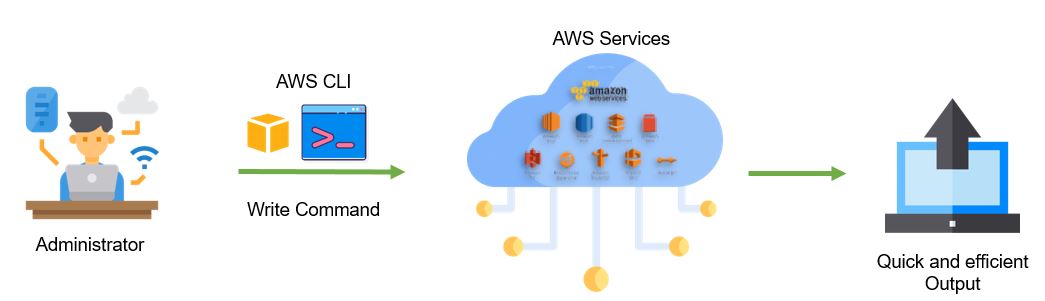
Key Features of the AWS CLI
1. Unified Tool
The AWS CLI provides a consistent command-line experience across all AWS services, eliminating the need to use different tools for different services.
2. Scriptable
You can use the AWS CLI in scripts to automate repetitive tasks, streamline workflows, and integrate AWS operations into your existing tools and processes.
3. Configuration Management
Easily manage multiple AWS profiles and configurations, allowing you to switch between different AWS accounts and regions seamlessly.
4. Cross-Platform
The AWS CLI is available on multiple operating systems, including Windows, macOS, and Linux, ensuring compatibility with your development environment.
Setting Up the AWS CLI :
Step 1: Install the AWS CLI
curl "https://awscli.amazonaws.com/awscli-exe-linux-x86_64.zip" -o "awscliv2.zip"
sudo apt install unzip
unzip awscliv2.zip
sudo ./aws/install
aws --version
Step 2: Configure the AWS CLI
aws configure
Enter your AWS Access Key ID, Secret Access Key, default region, and output format when prompted. These credentials can be obtained from the AWS Management Console.
Example:
AWS Access Key ID [None]: AKIAIOSFODNN7EXAMPLE
AWS Secret Access Key [None]: wJalrXUtnFEMI/K7MDENG/bPxRfiCYEXAMPLEKEY
Default region name [None]: us-west-2
Default output format [None]: json
Common AWS CLI Commands :
aws s3 ls
aws s3 mb s3://my-new-bucket
aws s3 cp myfile.txt s3://my-new-bucket/
aws ec2 describe-instances
aws ec2 start-instances --instance-ids i-1234567890abcdef0
aws iam create-user --user-name newuser
aws ec2 describe-vpcs
Automating S3 Backup :
#!/bin/bash

# Define variables
SOURCE_DIR="/path/to/source"
S3_BUCKET="s3://my-backup-bucket"
TIMESTAMP=$(date +"%Y-%m-%d_%H-%M-%S")

# Sync directory to S3
aws s3 sync $SOURCE_DIR $S3_BUCKET/$TIMESTAMP

echo "Backup completed at $TIMESTAMP"
Conclusion
The AWS CLI is a versatile and powerful tool that can significantly enhance your ability to manage and automate your AWS resources. By understanding the key features and learning how to use common commands, you can streamline your workflows and improve efficiency. Whether you’re managing S3 buckets, EC2 instances, or IAM users, the AWS CLI provides a unified and scriptable interface to interact with AWS services.
